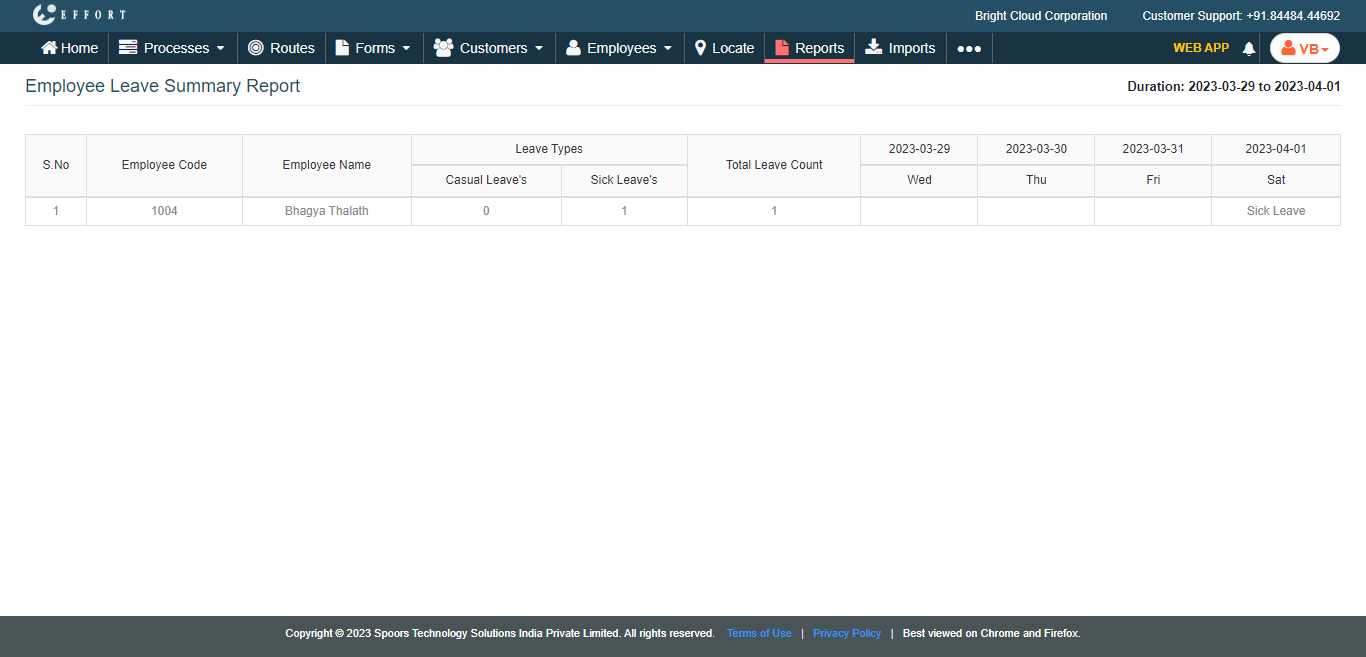
Generate an Employee Leave Summary Report
To generate an employee leave summary report, follow the steps below.
-
Go to .
The Reports page appears.
- Scroll down to the Leaves section.
-
Click the Employees Leave Summary Report link or
icon.
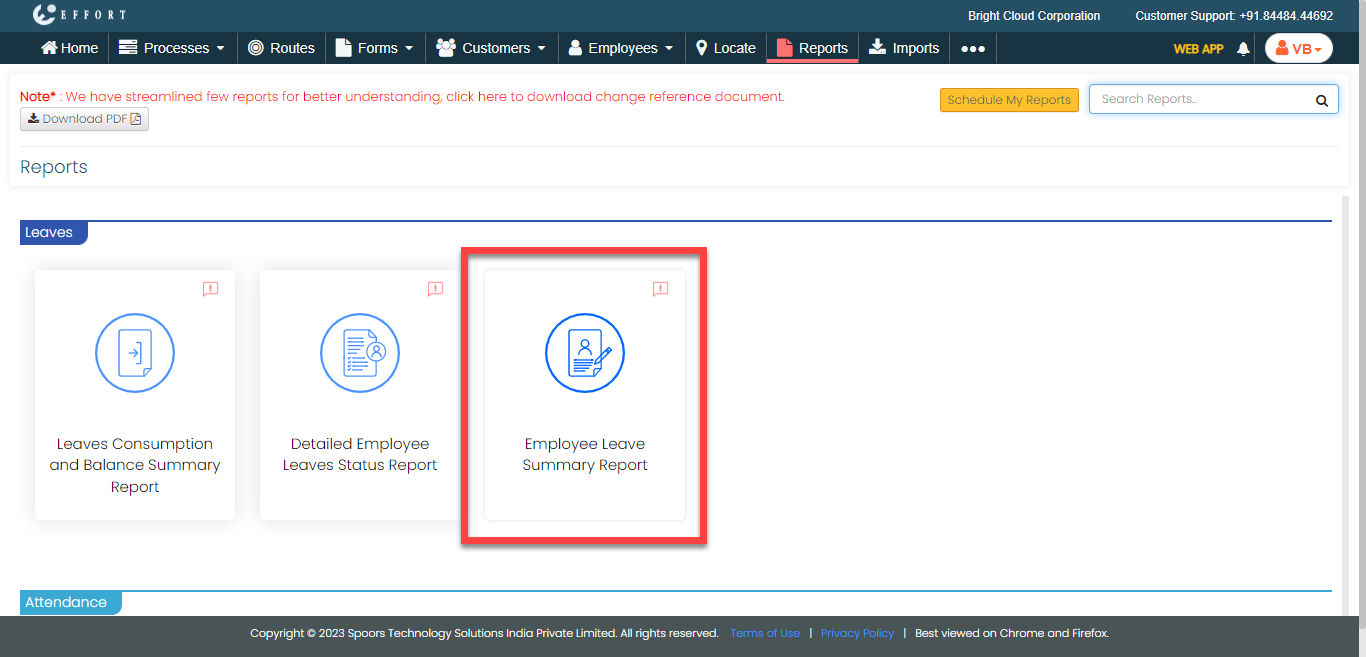
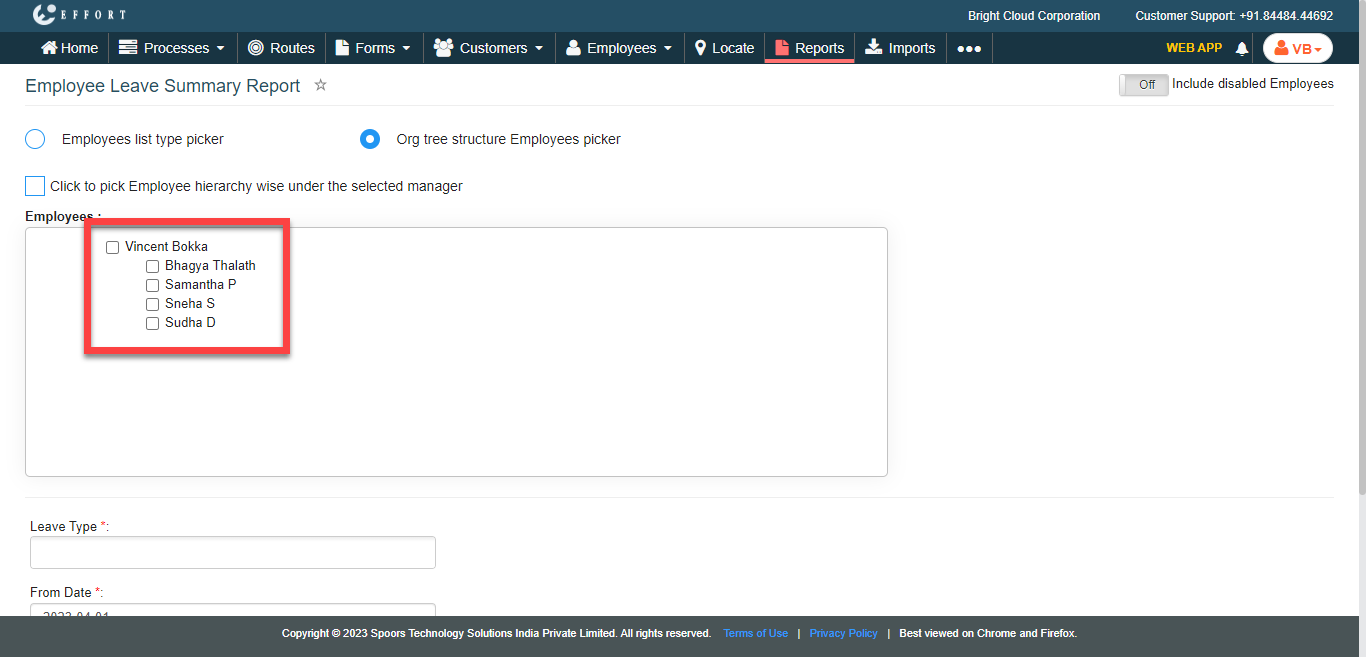
The Employee Leave Summary Report page appears.
-
Select the employees from the employees list.
-
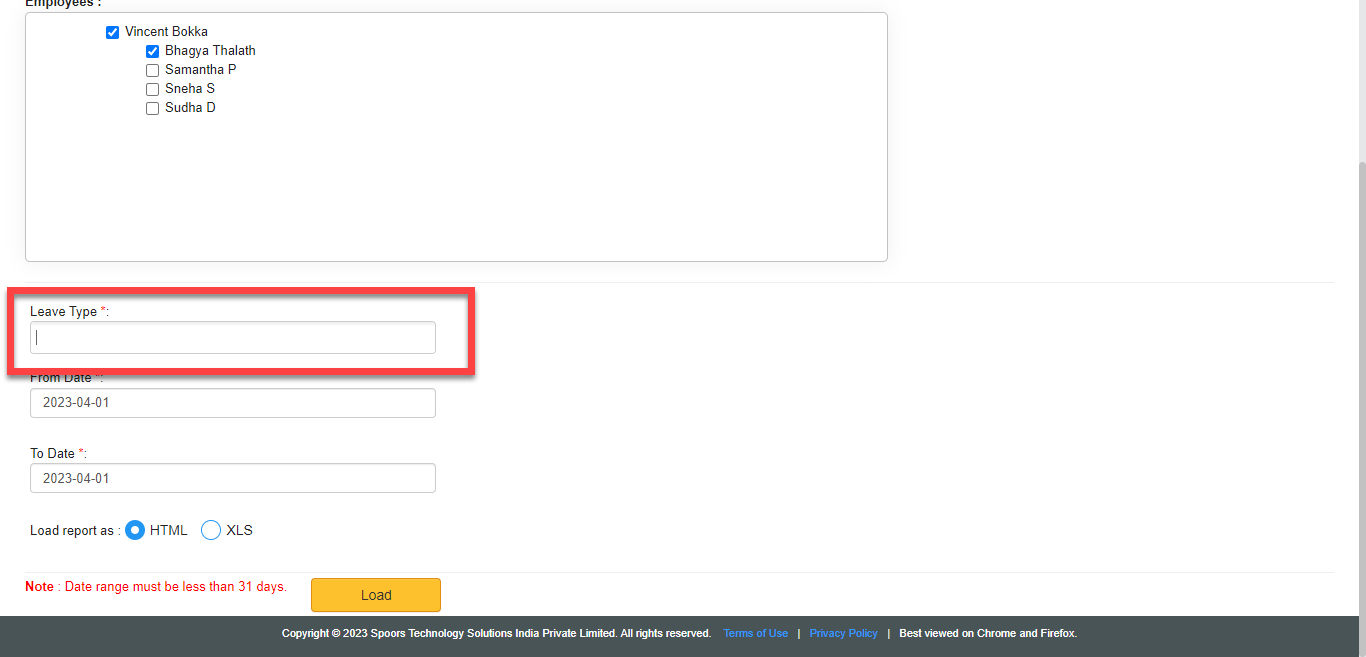
Select leave types under Leave Type dropdown.
- Optional:
Change the From and To dates as
per your requirement.
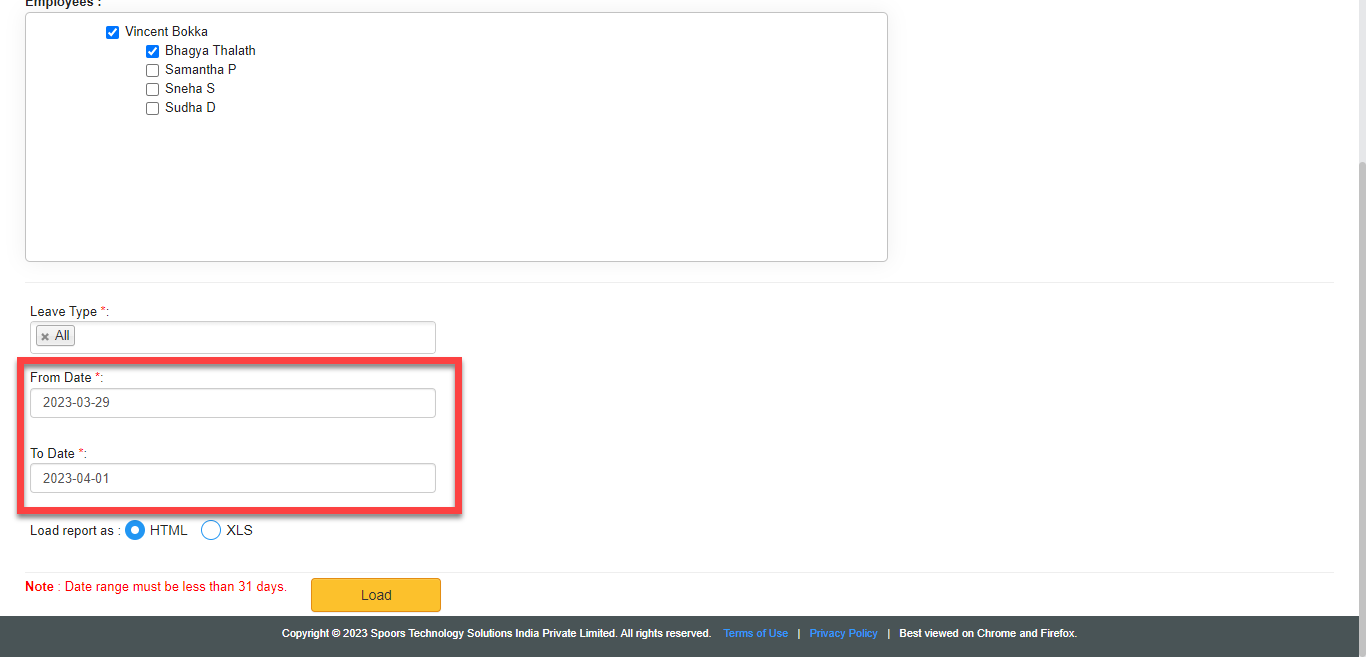
Both From and To default to today. - Optional:
In Load report as, change the report format as per your
requirement.
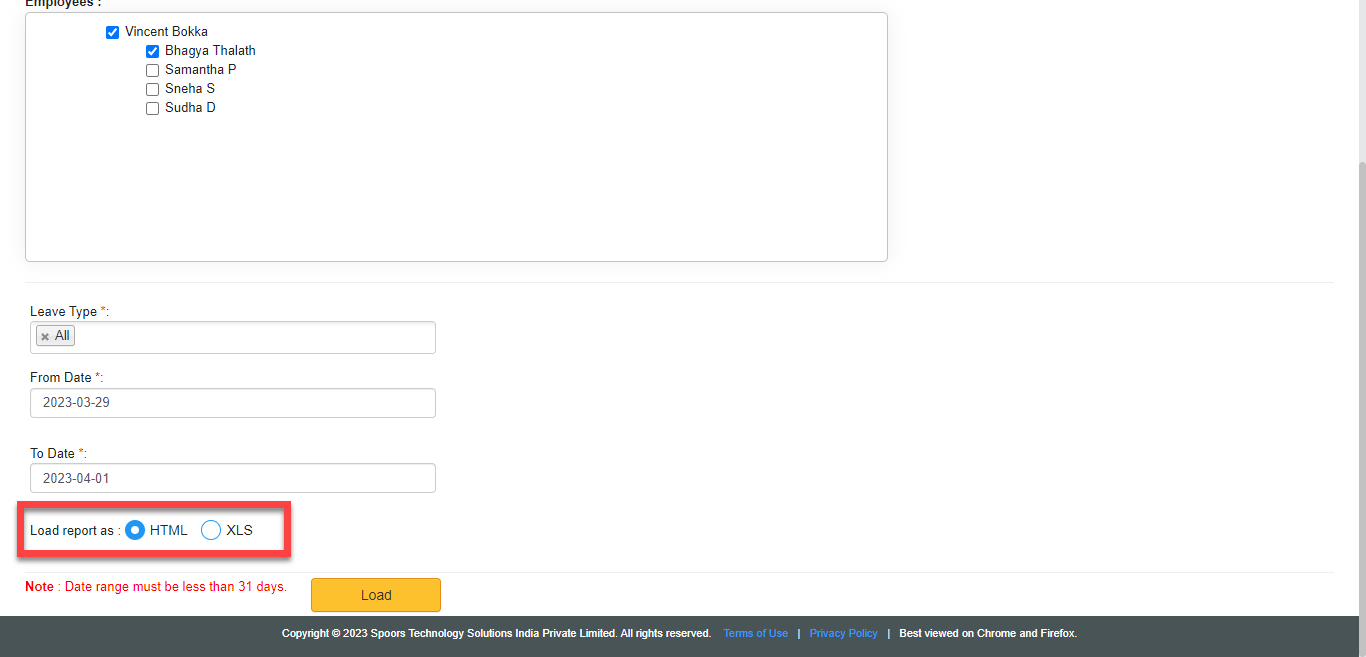
Load report as defaults to HTML. -
Click Load.
The Employee Leave Summary Report is displayed depends on the report format.