

Create Employee Group Based Escalation Matrix
Pre-Requisites
Make sure that you have already created Employee Groups in the Employees module. To learn more about creating employee groups, refer to the Add Employee Group.
To create an employee group-based escalation matrix, follow the below steps.
-
Go to .
The Employees page appears.
- Scroll down to the Performance Management section.
-
Click the Escalation Matrix card.
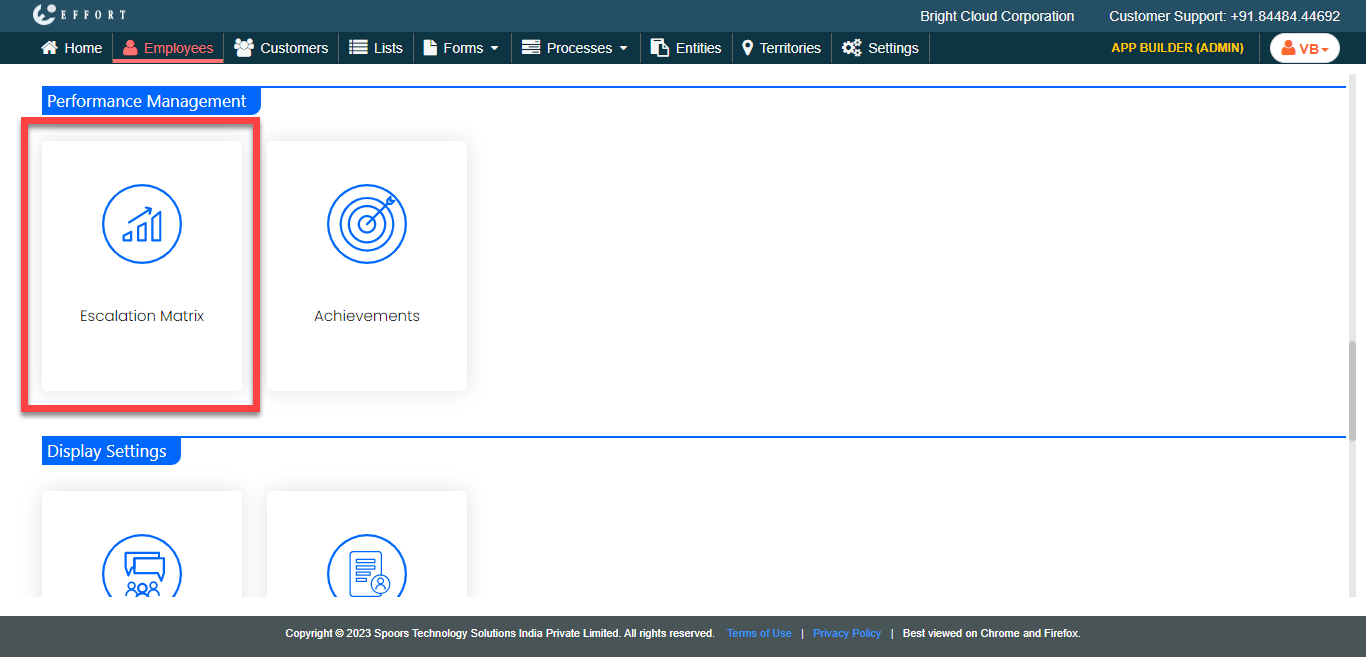
The Escalation Matrixs page appears.
-
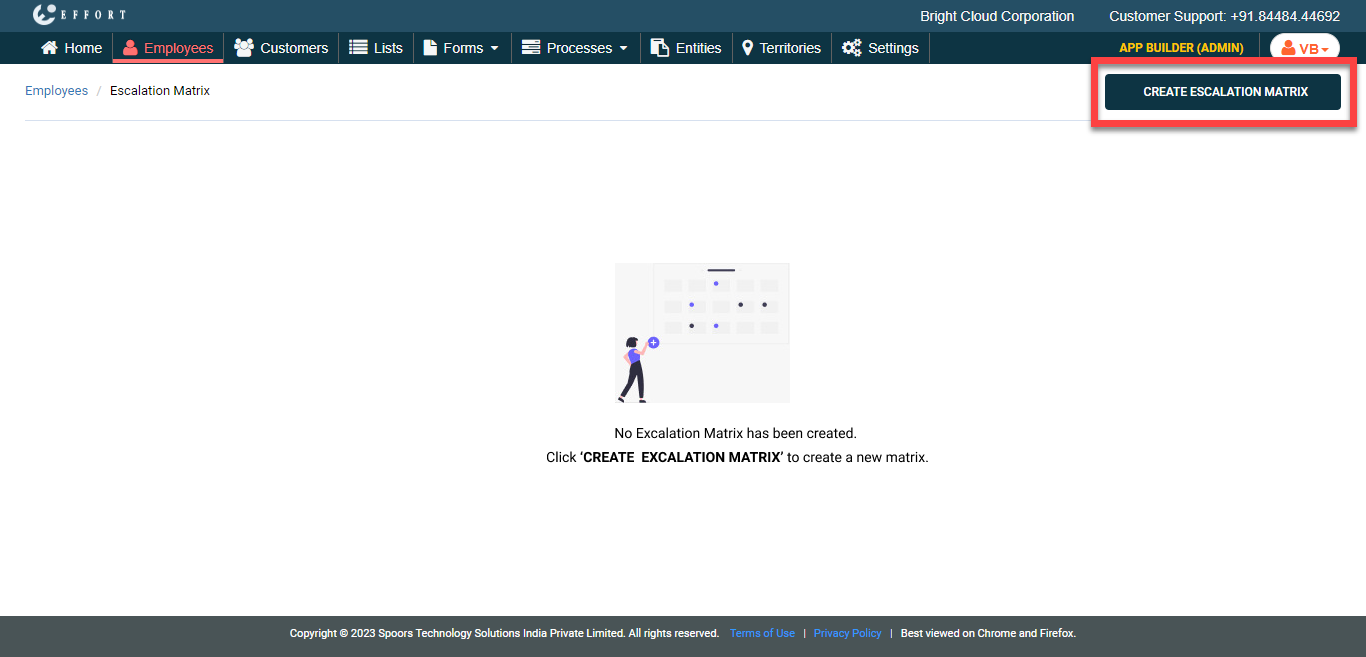
Click Create Escalation Matrix button.
-
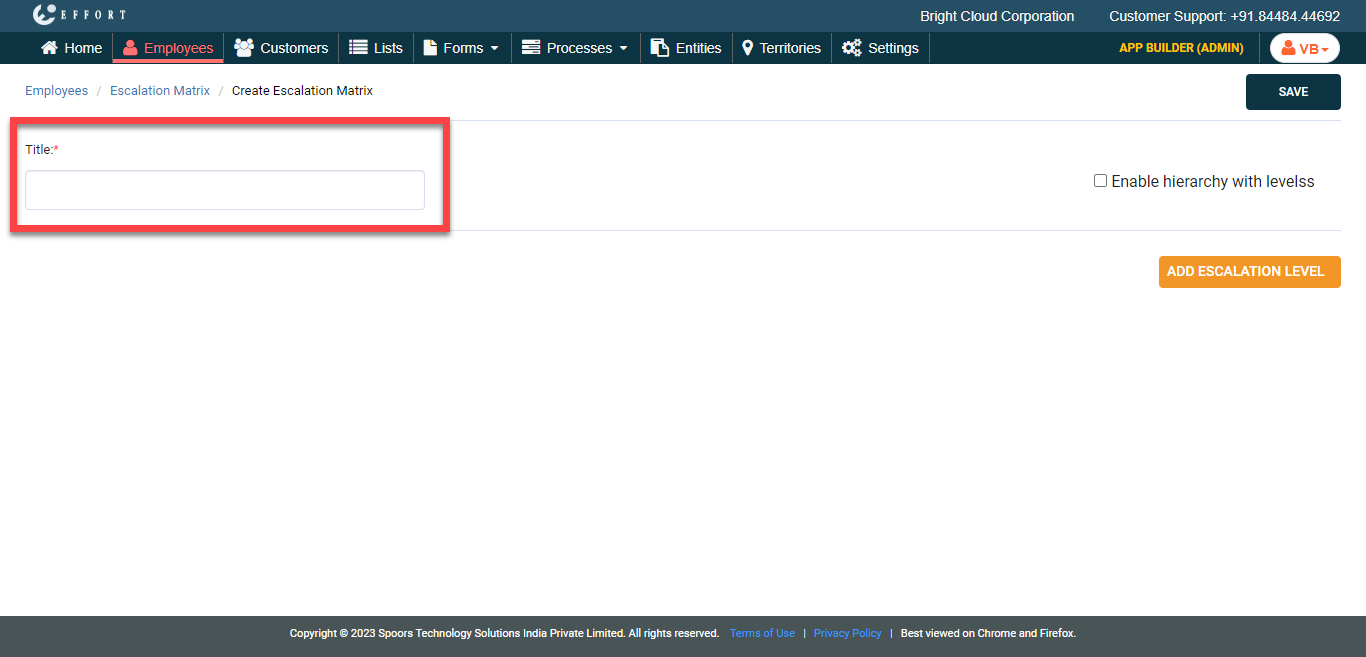
In the Title field, enter a title for the escalation
matrix.
-
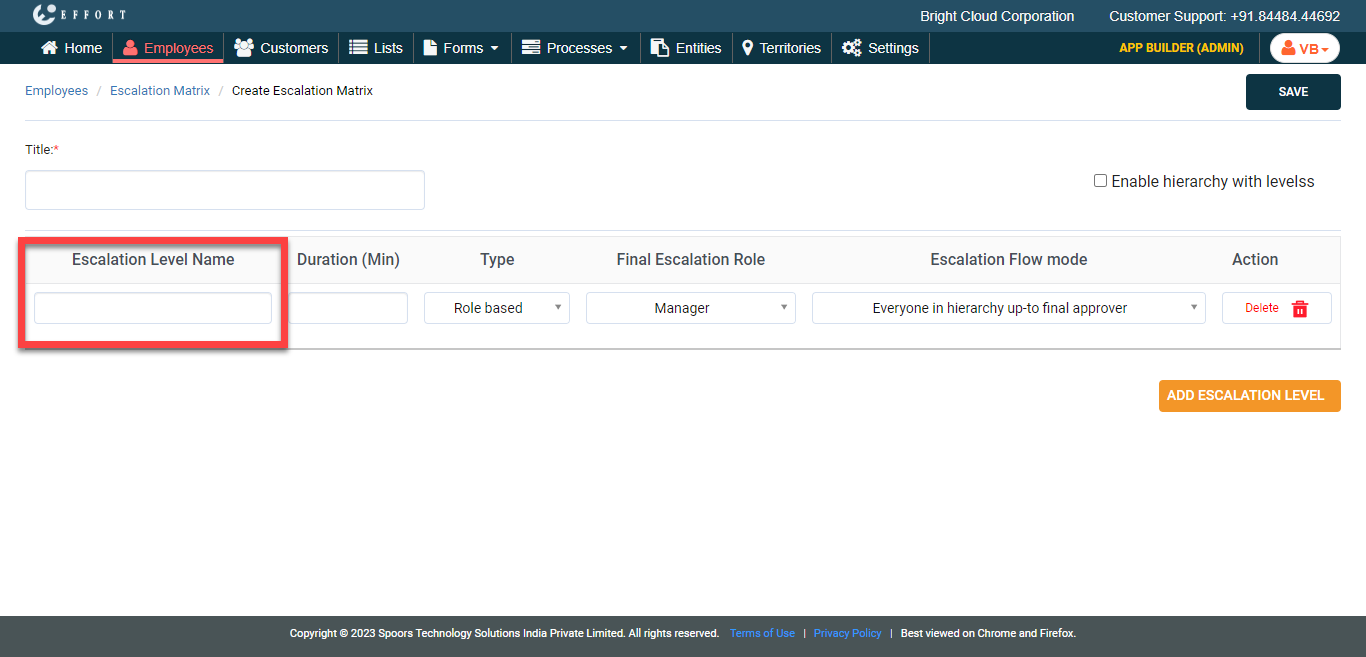
Click Add Escalation Level button and do the
following.
-
Enter the Escalation Level Name.
-
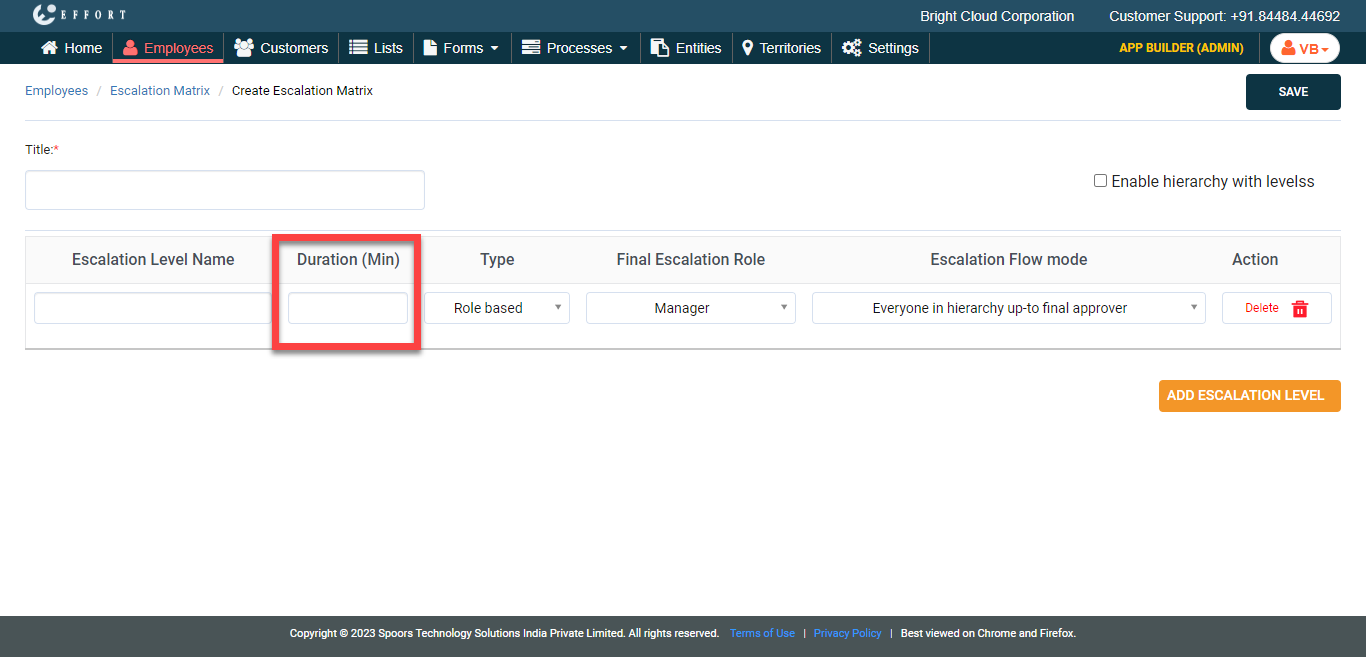
In the Duration field, define the duration to
report the escalation.
-
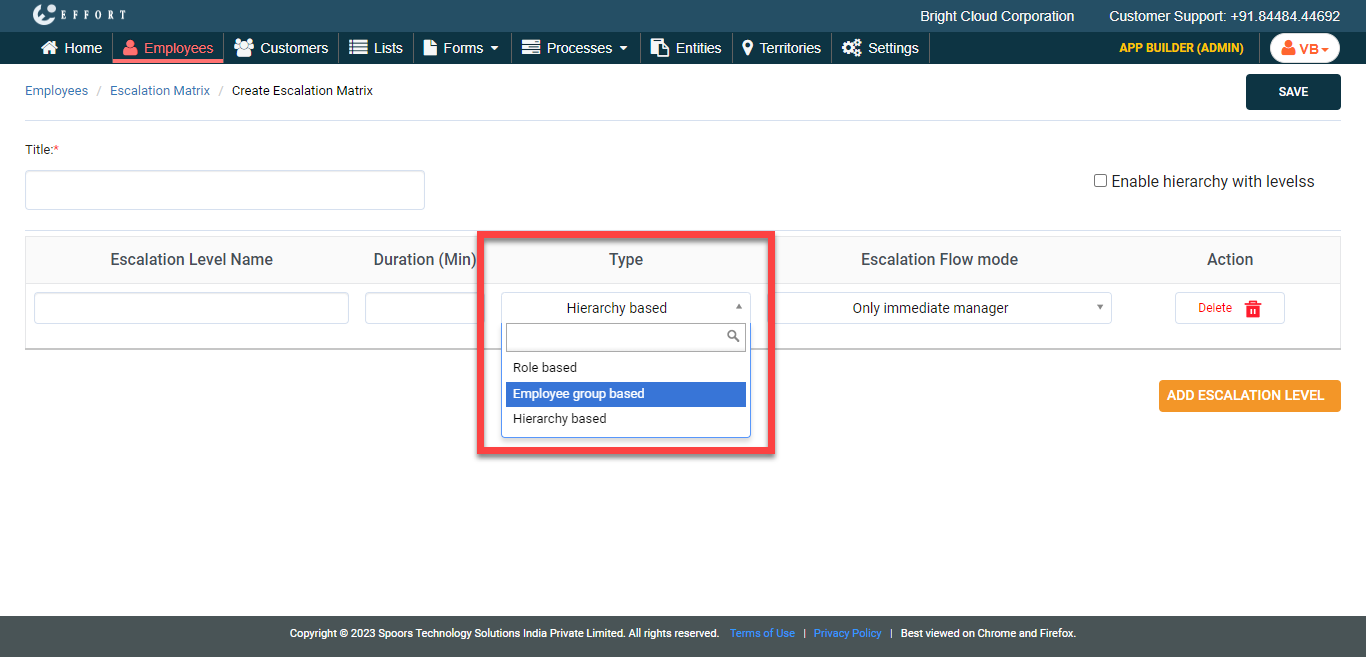
Under the Type column, select
Employee group based from the dropdown.
-
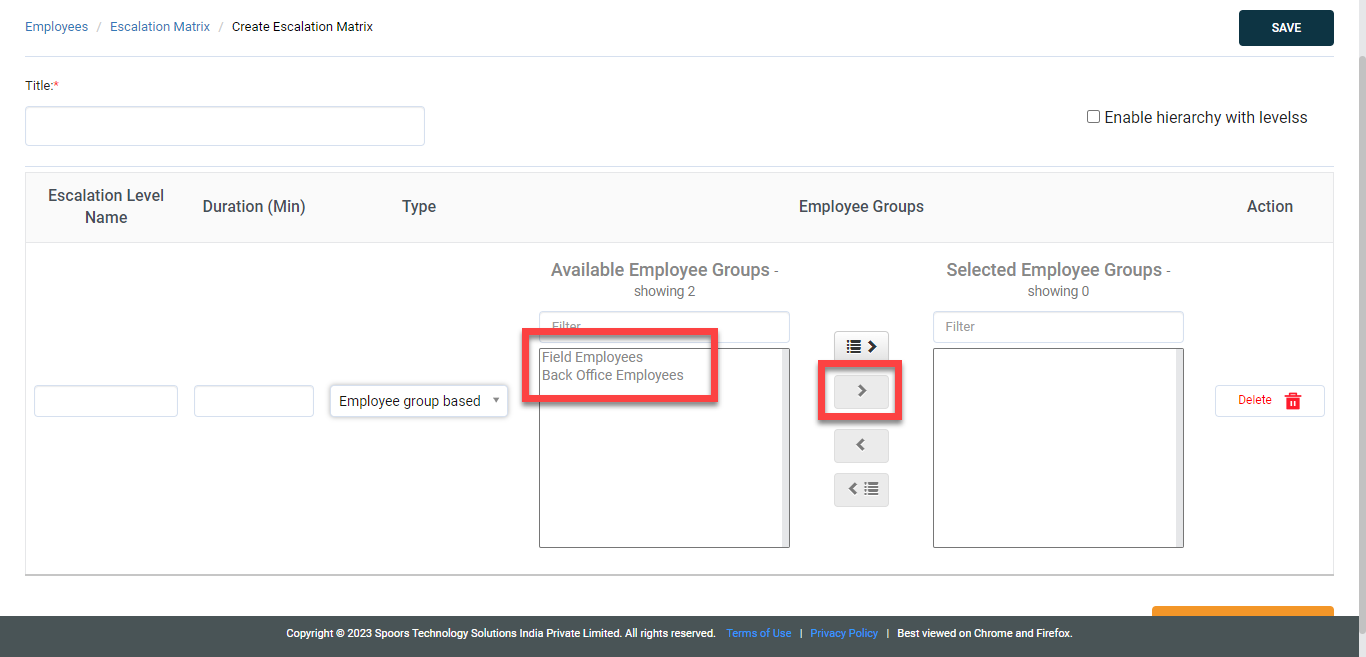
Under the Available Employee Groups section,
select the employee groups to whom you want to escalate, and click the
arrow icon to move the Selected Employee Groups
section.
-
Enter the Escalation Level Name.
- Optional:
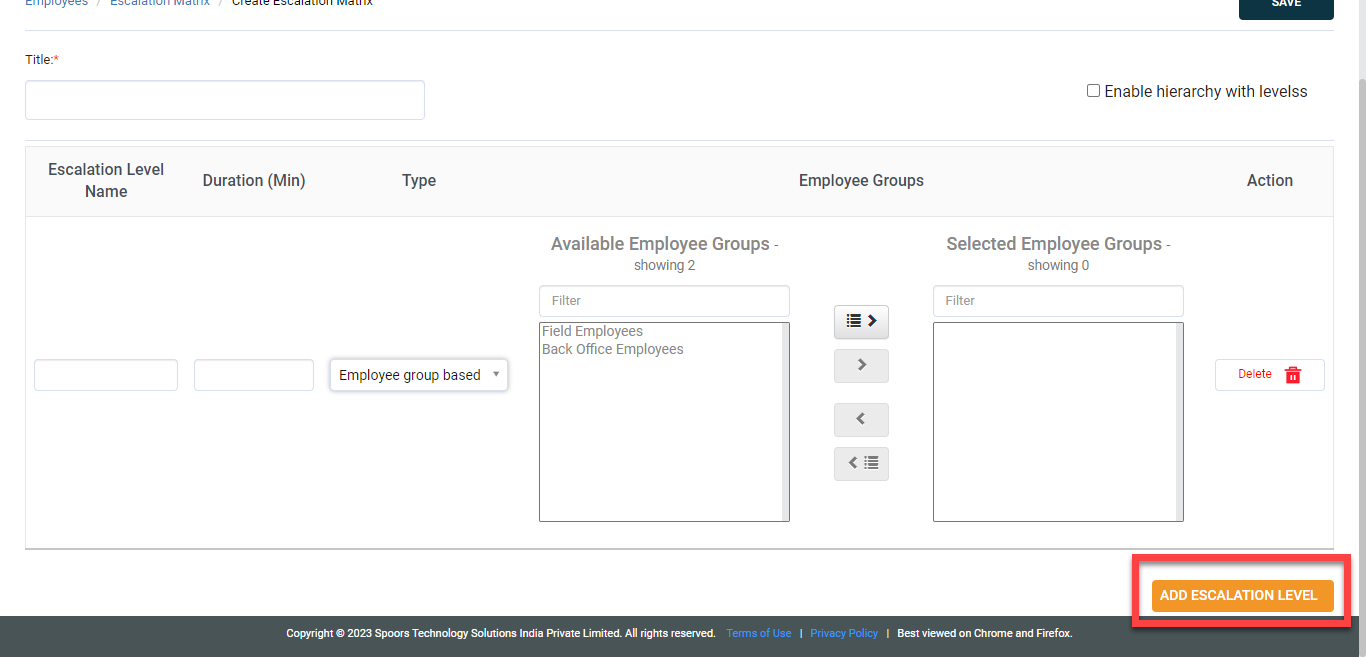
If you want to add more escalation levels, click Add Escalation
Level button again and repeat step 6.
- Click Save.